Connect Instagram and Instagram Ads
Link your Instagram Business account to YourLio with Facebook login, then switch on auto-replies for comments on your Instagram ads.
Overview
Connecting Instagram lets YourLio reply to DMs, comments, and story replies on your Instagram account. Connecting Instagram Ads on top of that lets it reply to comments on your ads too, and follow up in DMs.
Both use the same Facebook login. You can pick your ad account while connecting Instagram, or come back and add it later.
Before you start
You'll need:
- An Instagram Professional account (Business or Creator)
- That account linked to a Facebook Page
- The Page in a Meta business portfolio you have admin access to
- For Instagram Ads: an ad account in the same business portfolio
Personal Instagram accounts can't be connected. Switch to a Professional account in the Instagram app first, then link it to your Facebook Page.
Open the Instagram integration
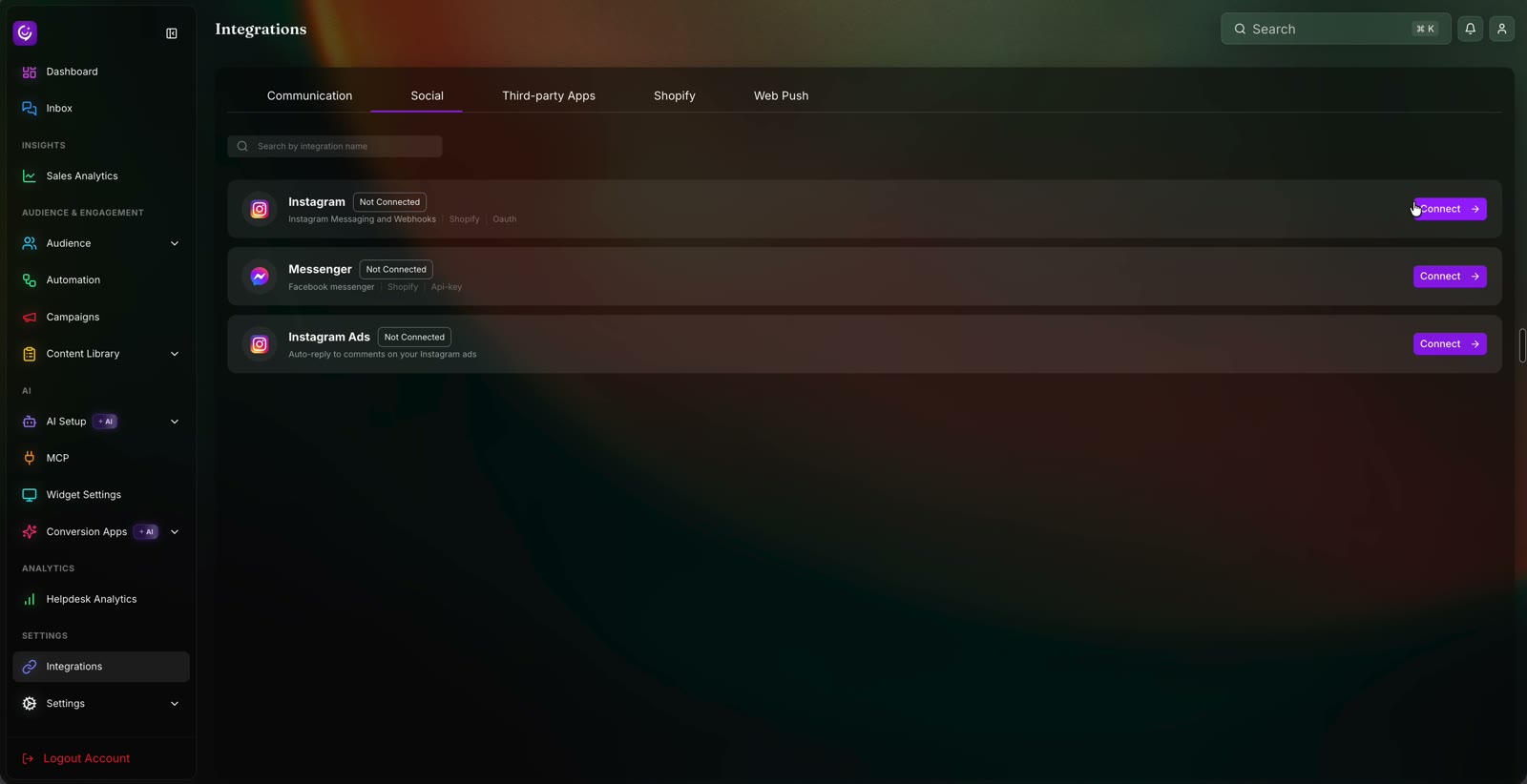
- In YourLio, go to Settings → Integrations in the left sidebar.
- Open the Social tab.
- Click Connect next to Instagram.
Choose how to connect
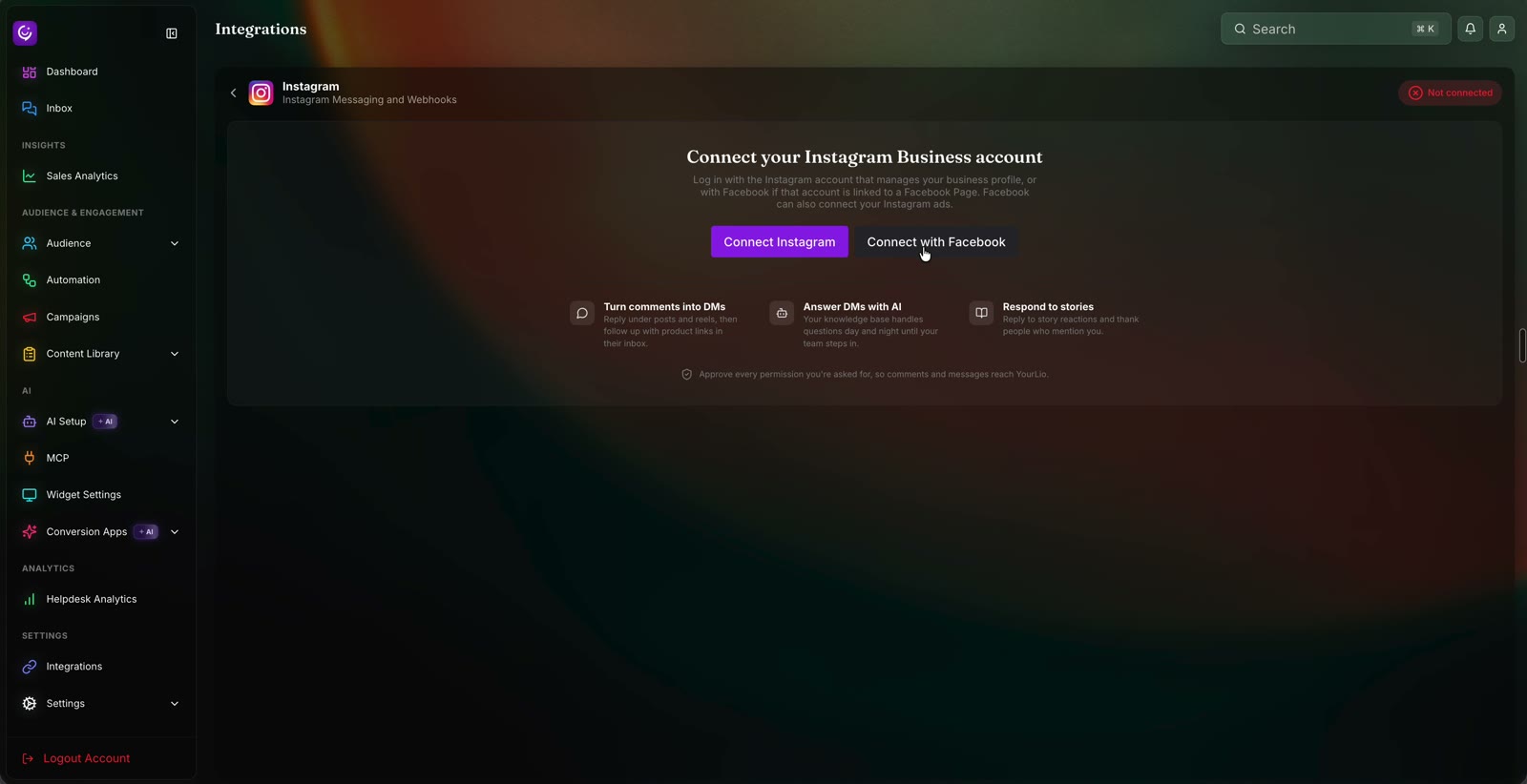
The Instagram page shows two buttons:
| Button | Use it when |
|---|---|
| Connect with Facebook | Recommended. Needed for Instagram Ads, and lets you pick the Page and ad account. |
| Connect Instagram | You only want DMs and comments, and log in with Instagram directly. |
Click Connect with Facebook. The steps below follow that path.
Log in with Facebook
A Facebook window opens. Log in with the Facebook profile that manages your business portfolio. The window shows the app name as Helio AI. That's YourLio, so it's safe to continue.
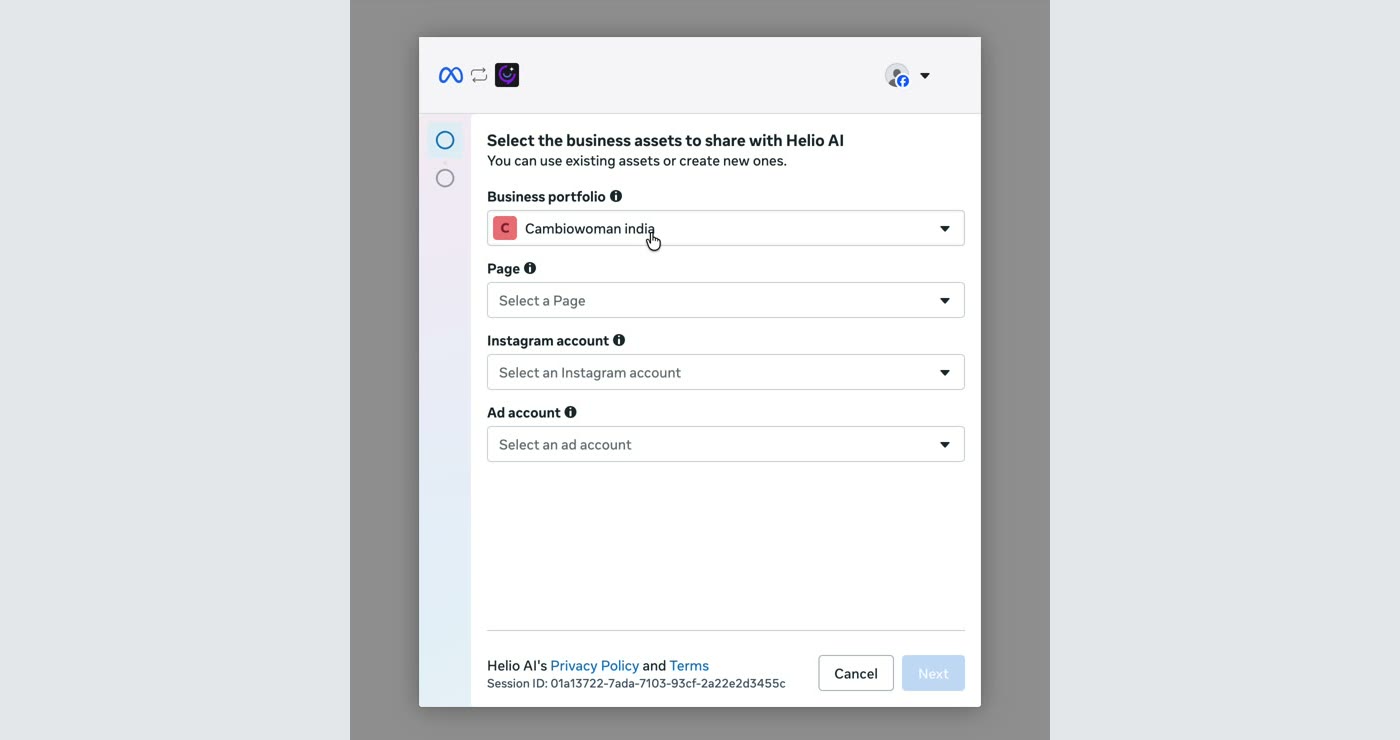
Pick your business portfolio
Under Business portfolio, choose the portfolio that owns your Instagram account and Facebook Page.
Select your assets
Fill in each dropdown:
- Page: the Facebook Page linked to your Instagram account.
- Instagram account: the account you want YourLio to manage.
- Ad account: the ad account that runs your Instagram ads. Pick one now if you want Instagram Ads. You can skip it otherwise.
- Click Next.
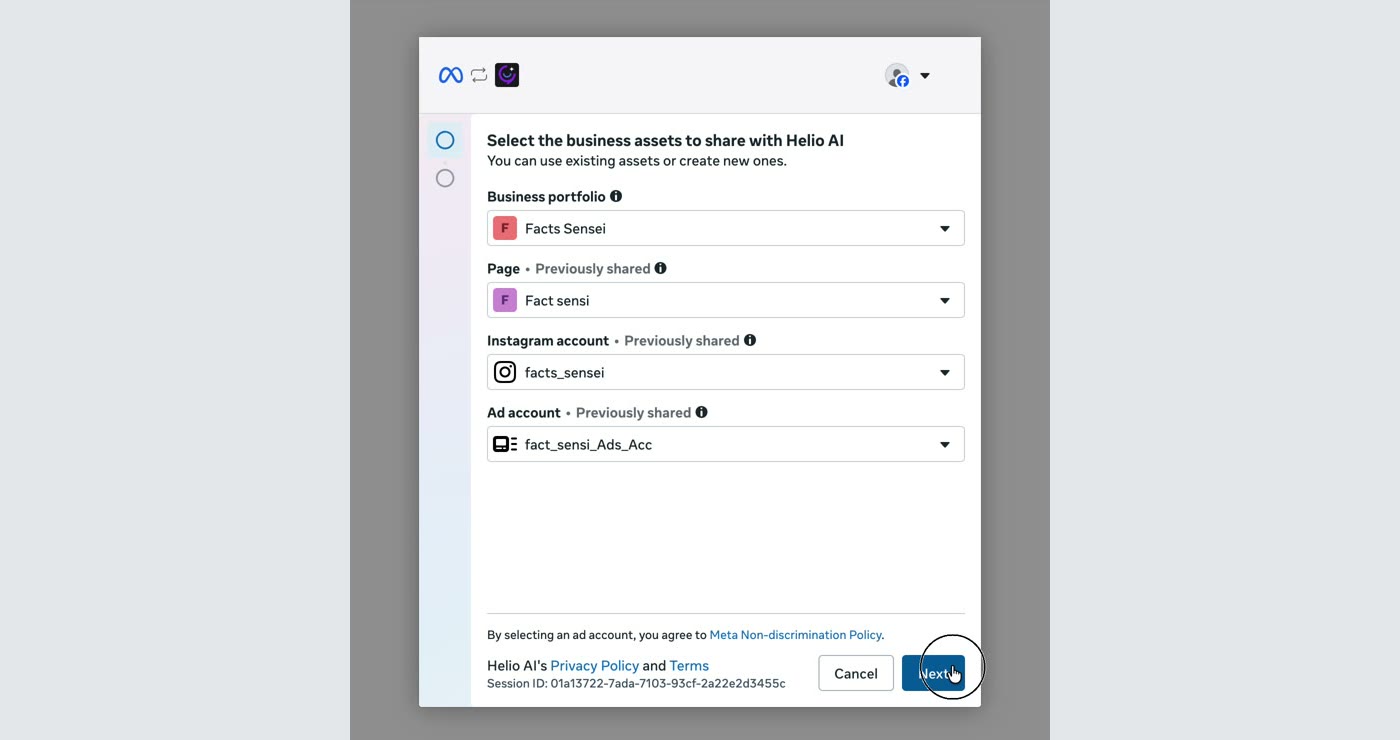
If the dropdowns say Previously shared, you've connected these assets before. Select them again; nothing is duplicated.
Review and confirm
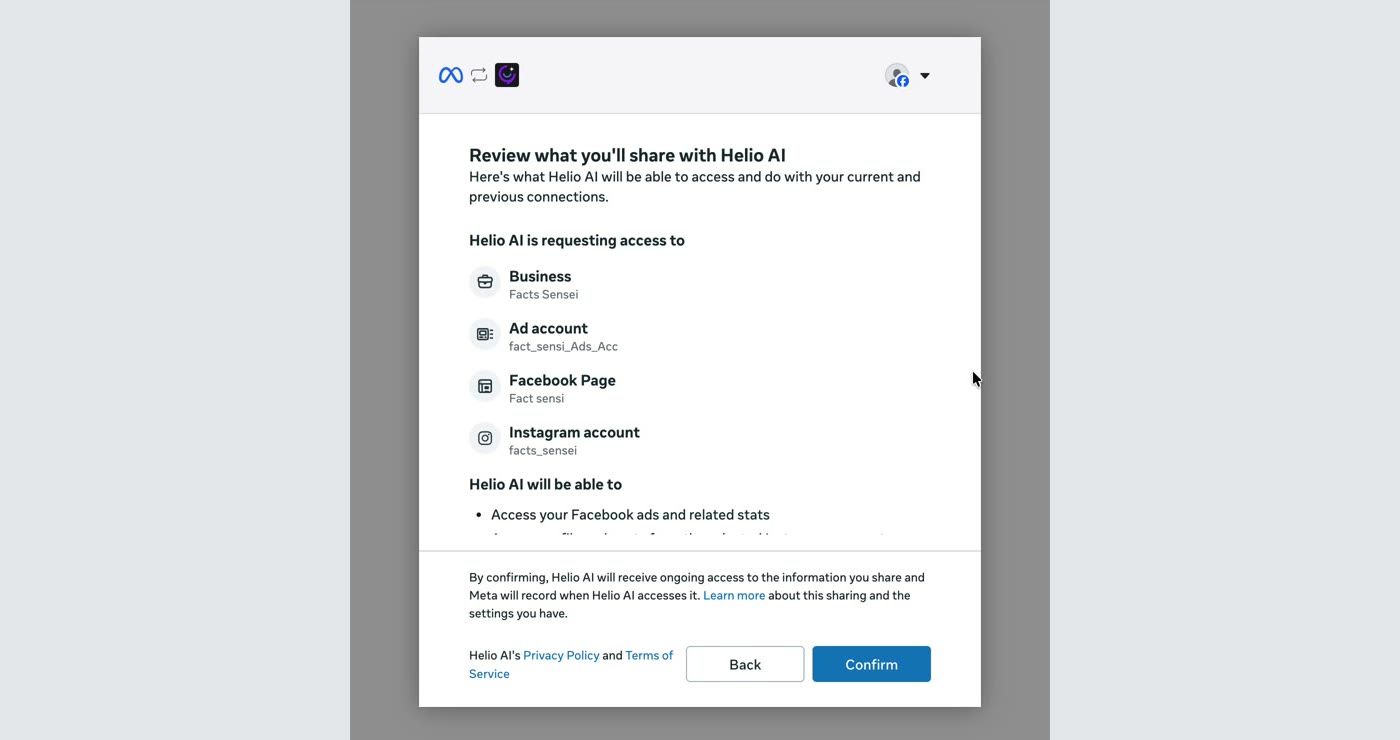
Meta lists what YourLio will get access to. Check that the business, ad account, Facebook Page, and Instagram account are the ones you picked, then click Confirm.
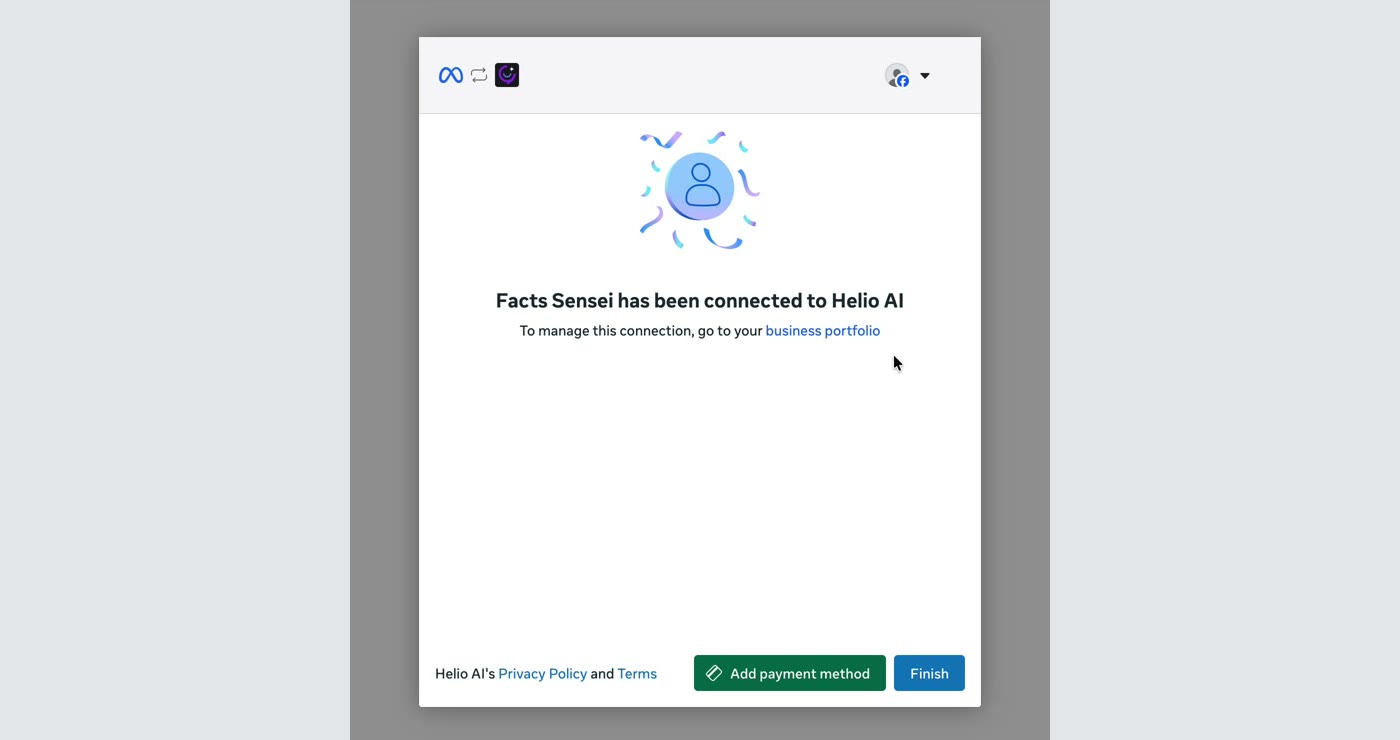
Wait for Connecting your account to finish. When you see "… has been connected to Helio AI", click Finish. Skip Add payment method; YourLio doesn't need it.
Finish connecting in YourLio
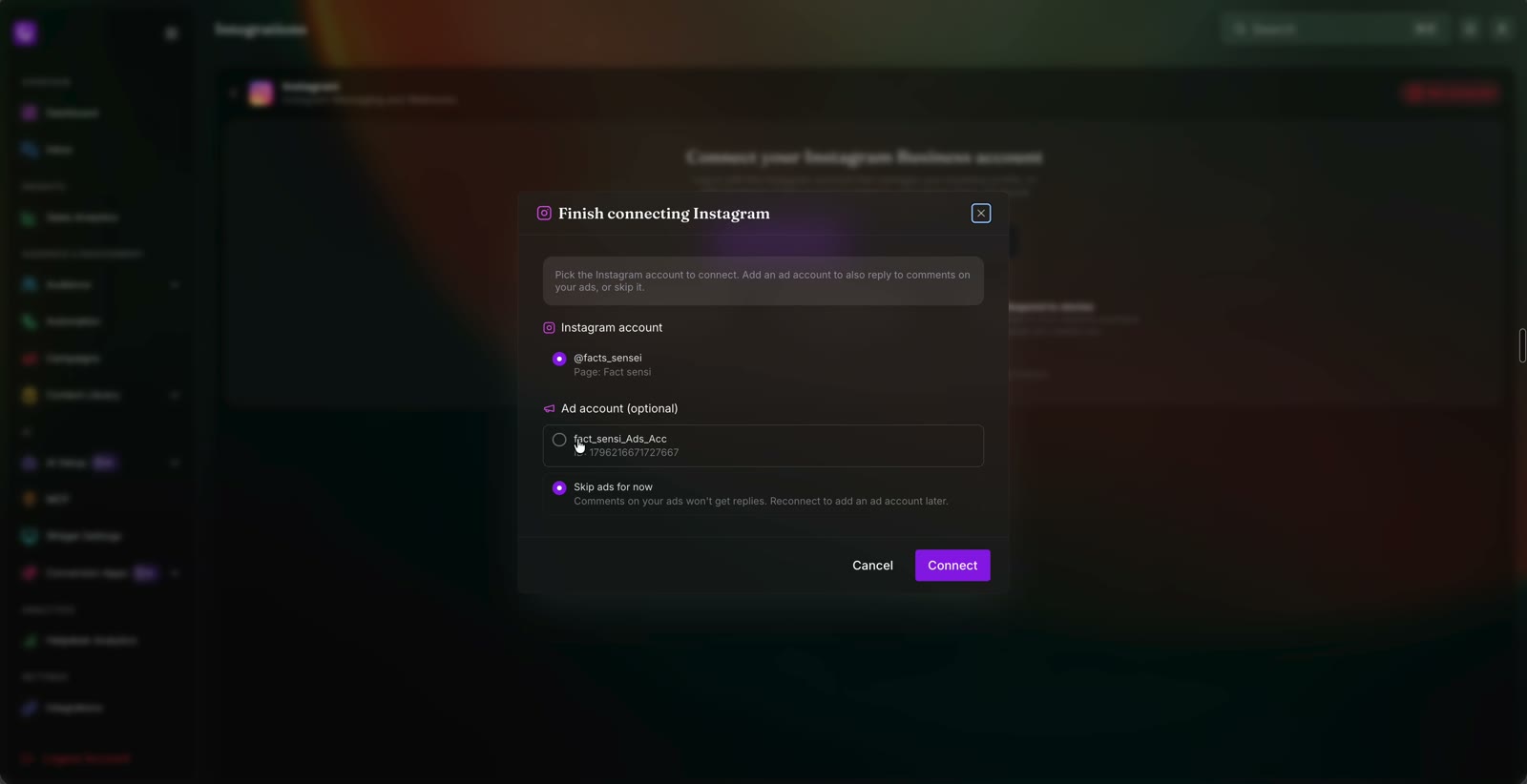
You're sent back to YourLio, which opens a Finish connecting Instagram window.
- Under Instagram account, select your account.
- Under Ad account (optional):
- Select your ad account to switch on Instagram Ads now, or
- Choose Skip ads for now to connect Instagram only.
- Click Connect.
When it's done you'll see Instagram connected successfully. The page shows your account, a Connected badge, and Instagram is active.
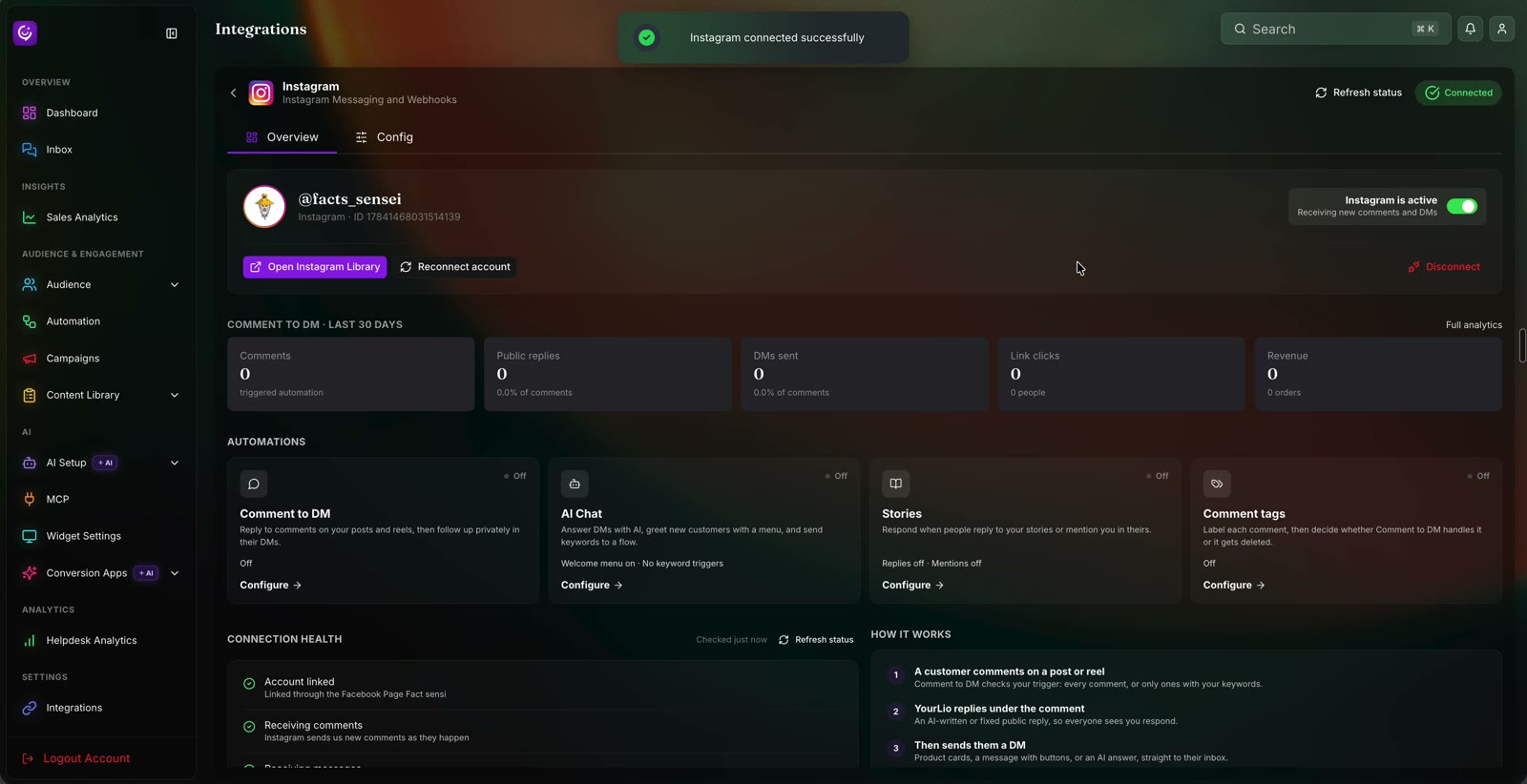
Check Connection health at the bottom. Account linked, Receiving comments, and Receiving messages should all have green ticks. If one doesn't, click Refresh status.
Turn on automations
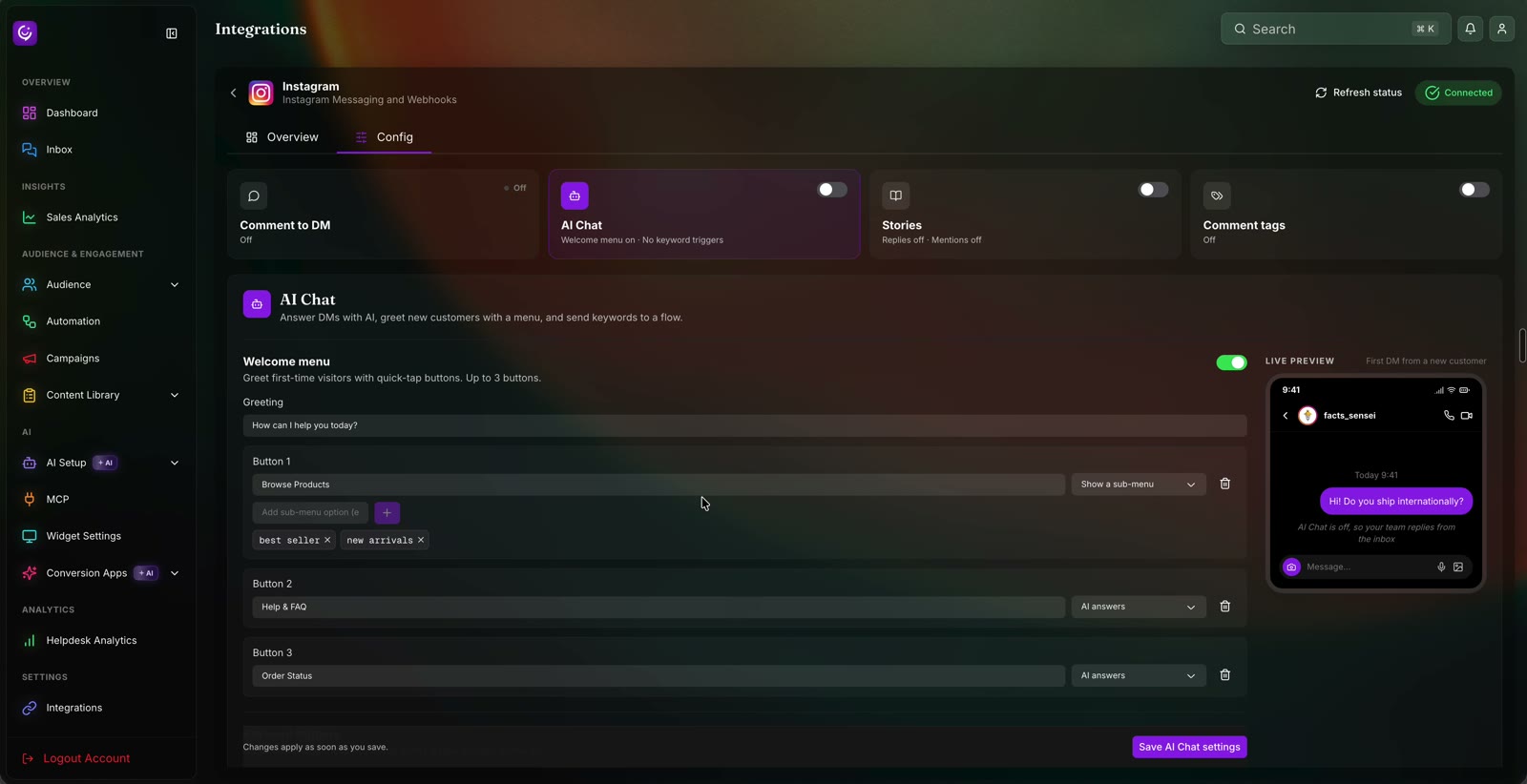
Connecting doesn't switch anything on. Each automation card on the Overview tab starts as Off. Click Configure on a card, or open the Config tab:
| Automation | What it does |
|---|---|
| Comment to DM | Replies under comments on your posts and reels, then follows up in DMs |
| AI Chat | Answers DMs with AI and greets new customers with a welcome menu |
| Stories | Replies when people respond to your stories or mention you |
| Comment tags | Labels each comment, then decides whether Comment to DM handles it or it gets deleted |
For example, to set up AI Chat: toggle it on, edit the Welcome menu greeting and buttons, check the Live preview on the right, then click Save AI Chat settings.
Test it
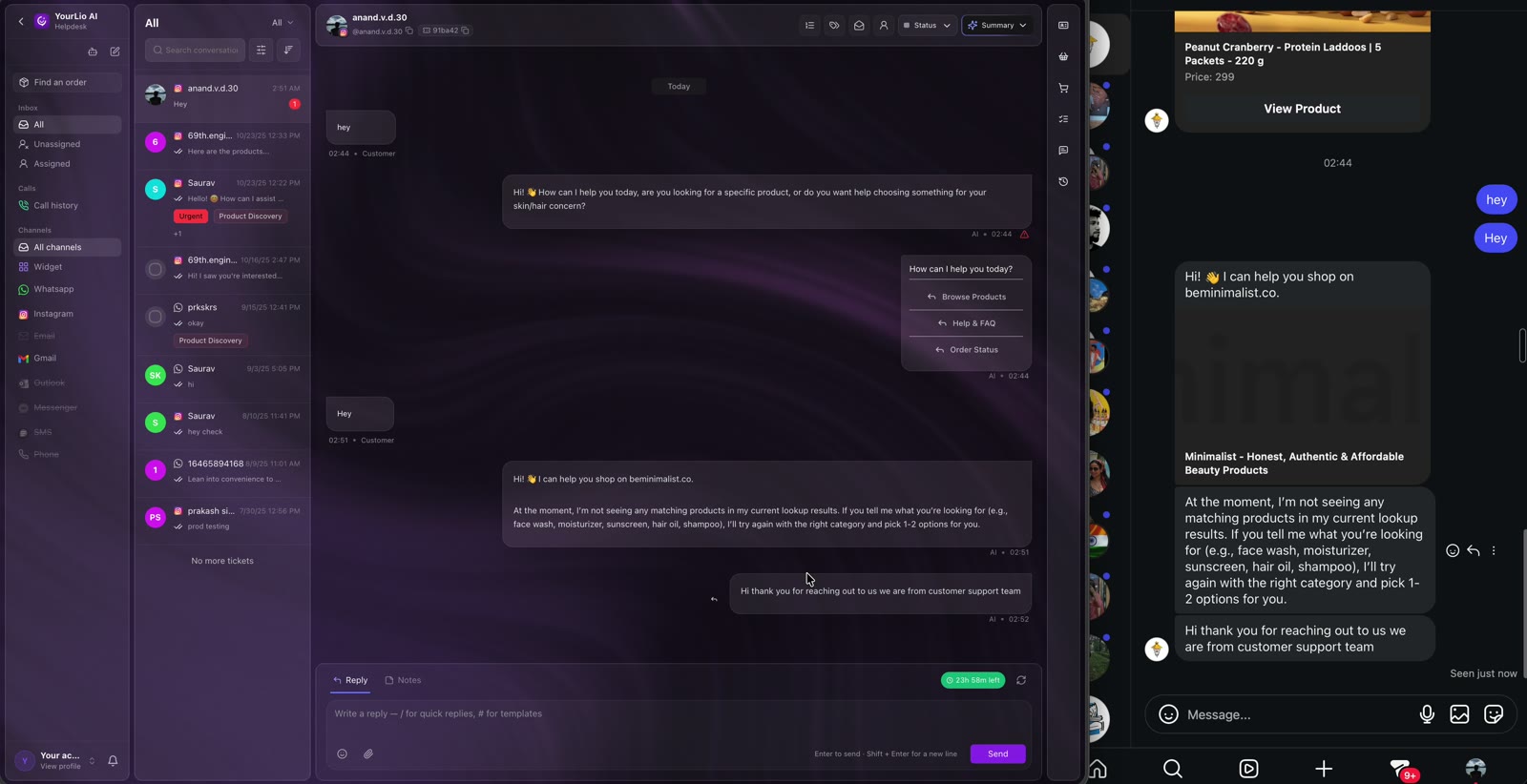
Send your Instagram account a DM from a different Instagram account. The conversation shows up in the YourLio Inbox, with the AI reply alongside it.
Connect Instagram Ads
Instagram Ads replies to comments on your ads and follows up in DMs. It needs Instagram connected with Facebook and an ad account.
If you picked an ad account in "Finish connecting Instagram", Instagram Ads is already connected. Skip to Set up ad replies.
Otherwise:
- Go to Settings → Integrations → Social.
- Click Connect next to Instagram Ads.
- On the Connect Instagram Ads screen, click Connect with Facebook.
- Repeat the Facebook login steps. This time, make sure you select an Ad account.
- Back in YourLio, in Finish connecting Instagram, select your ad account under Ad account (optional) and click Connect.
If Instagram was connected with the Connect Instagram button, connecting Instagram Ads switches it to Facebook login. Your Instagram settings are kept.
Set up ad replies
Open Instagram Ads from the Social tab. The header shows Connected and the Page, Instagram account, and ad account in use.
- Turn on the Automation switch in the top right.
- Set the default rules for ad comments: which comments to reply to, the public reply, and the DM. The preview on the right updates as you edit.
- Choose whether to Enable new ads automatically. New ads then start replying with these defaults.
- Choose whether to Skip reaction-only comments, such as "🔥" or "nice".
- Click Save ad defaults.
To give one ad its own rules, click Manage individual ads in the Library. It opens the Ads tab of your Instagram Library.
Troubleshooting
| You see | What to do |
|---|---|
| No Facebook Page available or 0 with Instagram linked | Link your Instagram account to a Facebook Page in Instagram or Meta Business Suite, then reconnect. |
| Could not load your Meta accounts | Click Connect with Facebook again and approve every permission Meta asks for. |
| Connection session expired | You waited too long on the Meta screens. Start the connection again. |
| Instagram account missing from the Meta dropdown | It's in a different business portfolio, or it's not a Professional account. |
| A Connection health item isn't green | Click Refresh status. If it stays red, click Reconnect account and approve every permission. |
Next steps
- Connect Facebook and Facebook Ads to automate your Facebook Page as well